


If you deal with Address Lists a lot – you know they can come with a lot of errors. As a wedding invitation designer, I was spending hours correcting my clients’ spreadsheets before printing (or sending them back and waiting days for the clients to fix them).
The biggest Address List issues I would see:
- Leading 0 falling off on New England zip codes
- Names of states were abbreviated, when we wanted them spelled out
- Capitalization and punctuation was all over the place
- Names of streets were abbreviated (or a mismatch of some abbreviated and some spelled out)
- City and State names were often in the same column when I prefer them to be separate
- Misspellings out the wazoo!
There are some tricks to make fixing these faster so I’ll share those today! But eventually I got tired of doing it and actually learned how to make my own Google Sheets Extension that would do it for me! So if you want to fix a lot of the issues on your address lists to format them for envelope printing, then check out Address Cleanup – a Google Sheets extension that can fix a lot of those issues. Here’s a quick tutorial showing you how it works!
How to Spell out State Name Abbreviations to Cleanup Address Lists in Google Sheets
The best way to spell out state name abbreviations in Google Sheets is to do it automatically in Address Cleanup – it even works on Canadian provinces! But if you’re wanting a manual fix, then the best option is usually a find and replace.
Spelling out State Abbreviations in Sheets
- Highlight the State abbreviation column
- Click CMD / CTRL + F
- Click the 3 dots on the side – the Find + Replace box should pop up
- Go through each state on your sheet one by one: Put the Abbreviation in the Find blank and the spelled out name in the Replace blank
- Click Replace All
- Repeat steps 4 and 5 for each state in your sheet
To go faster, sort the state abbreviation column in alphabetical order so you can quickly see which ones you need to switch out! Most lists don’t contain people from more than 10 states so you can go relatively quickly.

Important note: Sometimes you’ll find that an abbreviation for one state is inside the spelling for another state. IE: If you correct NC to North Carolina and THEN correct CA to California, those will change to North Californiarolina. So always give it a once over before finalizing your sheet! If all abbreviations are capitalized, you can select the “Match Case” box to avoid this issue.
Alternatively, if your sheet contains only a few states, you can simply correct a spelling once and drag it down to the end (definitely alphabetize this column first to make that easier!).
Spell out Street Names in Spreadsheet
Spelling out Street name abbreviations is the same as doing the states, but there are a lot more types of streets and you might not know the abbreviations for all of them. There are about 100 different types of streets in the US alone! Do you know what the abbreviation “Wl” stands for? (Answer: Well!).
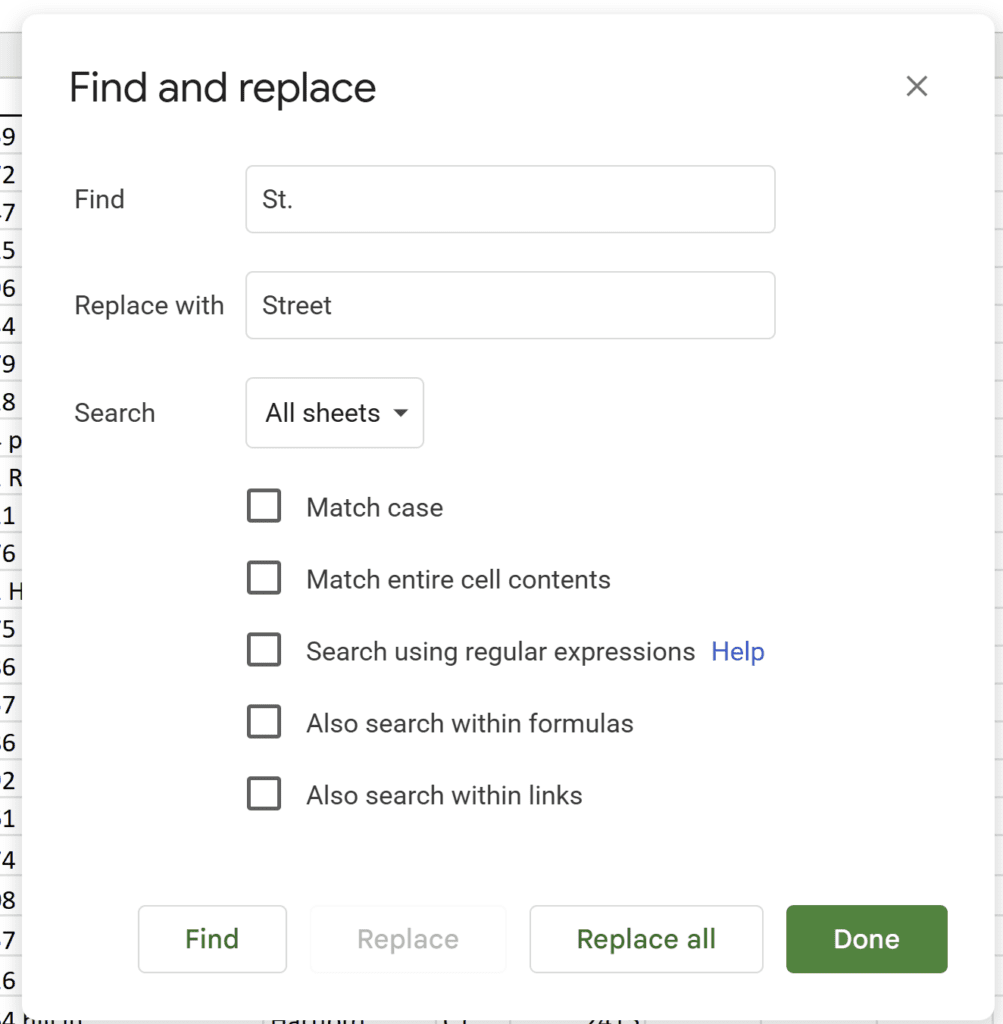
This is an area where an automatic tool like Address Cleanup can help you a lot! It will also standardize punctuation and capitalization so if some of the addresses say “St.” vs. “st” then it will change them both to “Street” correctly!
If you want to do it yourself, however, here are the steps:
Spelling out Street Abbreviations in Sheets
- Highlight the Street abbreviation column
- Click CMD / CTRL + F
- Click the 3 dots on the side – the Find + Replace box should pop up
- Go through each street type on your sheet one by one: Put the Abbreviation in the Find blank and the spelled out name in the Replace blank
- Click Replace All
- Repeat steps 4 and 5 for each street type in your sheet
Important note: Sometimes you’ll find that an abbreviation for one street type is in another word in that same cell – for example if you correct “st” to “Street” and there is a street on your list called “First Street” it will correct to “FirStreet Street”. You can potentially use the Match Case box to avoid this issue, but then you will not correct any street abbreviations that are in a different case. The Address Cleanup Extension accounts for this issue automatically for you!
This will be the same fix for spelling out Apt into Apartment, Ste into Suite, etc.! (Address Cleanup handles those for you too).
Fix Leading 0 Disappearing in Spreadsheet
The 0 always disappears when it’s the first number in a cell on a spreadsheet. This is because when you are using actual numbers, a starting 0 doesn’t actually matter. The numbers 010 and 10 are both just ten. This isn’t helpful when you need it to stay there though – like in a zip code that starts with a 0.
There are a few ways to fix a disappearing 0 in a spreadsheet!
- Start your text with an apostrophe (ie: ‘01234). It’ll signify that the 0 should stay, and it will
- Convert your column to plain text vs. a number
- Use Address Cleanup Extension to fix them automatically
Which way is your favorite?
How to Split City and State into 2 Columns in Excel or Sheets
Sometimes you get a list with city and state in the same column, but you need to separate them. The simplest way to do this is with Split Text to Columns under the “Data” menu! Usually, you’ll have a comma between the city and state (Topeka, Kansas) so you can select the comma as the delineator and it’ll split the text into columns.
Important note: Make sure you have at least 1 empty column to the right of the city, state column or the state information will override your next column!
If you don’t have commas between each one, then you can use a space as the delineator. This will require a little more cleanup as some cities and states have multiple words in them.
Combine City and State into one Column Google Sheets
The opposite problem is common too! If you need to combine two cells, as in city and state, here’s how!
- Add a new column or select an empty one
- Use this formula: =CityCell&”, “&StateCell, where you replace CityCell with the city cell and replace StateCell with the state cell. This will give you “City, State” with a comma and a space between the two.
- If you’d like something else between the two then put that between the &“”& – anything between the “” marks will be between the 2 pieces of data in your result

Standardize Punctuation and Capitalization to Cleanup Address Lists
There are a few ways to standardize punctuation and capitalization in Google Sheets. Here are some of my favorites:
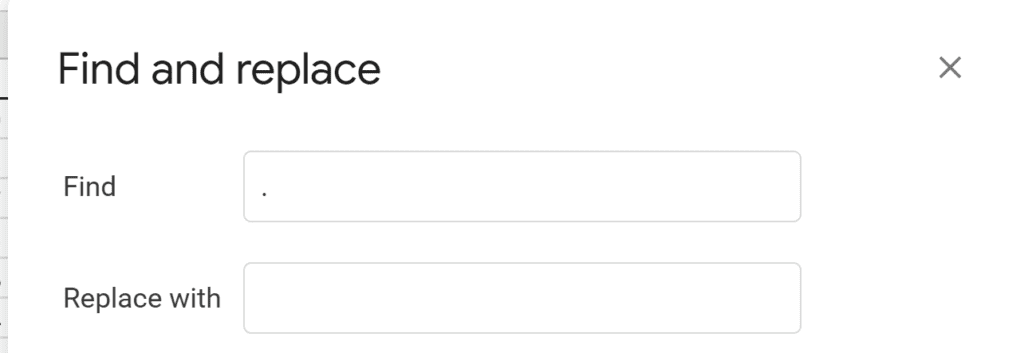
- Remove periods at the end of Abbreviations – use Find + Replace All finding “.” and replacing with nothing (you leave the replace field blank)
- Capitalize first letter of all words – “=PROPER(Cell)” (has to be done in a separate column and then pasted back in)
- Same fix ^ if all words are in all caps
- If you want them in all caps – “=UPPER(Cell)”
Overall, if you know how to clean up your address lists, it doesn’t have to take forever. Sometimes it’s faster to just clean up a few things yourself vs. sending it back to the client and waiting for them to figure it out! But, Address Cleanup Extension can do a lot of this work for you automatically – which is especially helpful when your lists get really long! If you’re working in address lists a lot, definitely check out the Extension.


Behind the scenes with your favorite Stationery Auntie Laney (and all the inside scoops!)


