


If you’re not sure which invitation design programs to use – never fear! I have tried all of them, and frankly use a lot of them in my workflow. You’ll find that as you start designing, you’ll like different programs for different things. So here’s my comprehensive list of the Top Invitation Design Programs in 2026!
One note: I’m teaching from the place of a professional wedding invitation designer (read: not from the perspective of a DIY engaged couple!). DIY-ing is great, but I’ll talk about using these design programs in my business.
Some links are affiliate links, we will make a small commission if you use them to sign up for products. These are provided at no cost to you, and with full honesty!
Adobe Creative Cloud Invitation Design Programs
My favorite programs for wedding invitation design are in the Adobe Creative Cloud. Adobe programs are the graphic design standard, and for a reason. They are robust, well-executed programs, and most importantly: everyone else is using them.
Why is this so important? If you have any questions, need help, or encounter any file setup issues, then you can ask people in your industry for help. Your printers will be working in Adobe, so they will speak the language of Adobe. Your fellow stationers will be working in Adobe, so they will be able to help you in those programs. And any stationery design course that you take or invitation tutorial you watch will be taught using Adobe.
Which Adobe Programs are Best for Invitation Designers?
Most designers use a combo of 3 Adobe programs:
- Adobe Illustrator
- Adobe InDesign
- Adobe Photoshop
Using all 3 of these programs together gives you pretty much everything you need for wedding invitation design! I find that most people have a “home base” in either Illustrator or InDesign and then use the other occasionally for certain tasks. Most designers use Photoshop just for editing images and paintings, before putting them together in Illustrator or InDesign!
Adobe Illustrator for Invitation Design
Illustrator is my #1 favorite program for invitation design. It’s technically a vector graphics program, so it handles any vector elements really well. It’s great for editing text, working with color, and I like that you can move and change artboards as you design so you can see how the entire suite is coming together.
For a Free Adobe Illustrator class, go here!
Adobe InDesign for Stationery Design
InDesign is another great program for designing invitations – a lot of designers use it as their main program. It’s great for layouts and text editing. I personally always use InDesign for longer documents, like address printing, escort / place card setup, and table numbers. InDesign technically specializes in layouts for things like magazines or books – so a lot of classes are taught using those examples. Once you’ve taken our free Intro to Illustrator class, you can upgrade to the full Adobe CC Bundle to get a class on InDesign taught from the perspective of an invitation designer!!!

Photoshop for Stationery Designers
We also love using Photoshop to edit any raster elements – mainly images and watercolor graphics! Photoshop is perfect for editing images, and luckily all of the Adobe Creative Cloud programs are interconnected so you can place them right in your Illustrator or InDesign document afterward to finish your design. I don’t like editing text or vector graphics in Photoshop; it’s just not what Photoshop is designed for and it’s a lot easier to do in InDesign and Illustrator!
Adobe Express
Adobe Express is basically Adobe’s answer to Canva. It’s a cloud-based design interface that you can use to work collaboratively with your team or on the go! They have better download options for printing than in Canva, so I appreciate that. However, I wouldn’t personally design invitations in Express as it’s a raster-based program with fewer capabilities – I’d just always feel more comfortable bringing any graphics into Illustrator to fully design.
Affinity
Affinity programs (Photo, Design, and Layout) are the main competitor to Adobe’s Creative Cloud for wedding invitations. The biggest pro is the price here – currently you can get all 3 for under $200 one-time payment vs. Adobe’s subscription cost. I also enjoy that you can work in all 3 programs more seamlessly, and switch between them easily.
People say that the user experience is better in Affinity. Personally, I found it annoying to learn but only because I was used to Adobe! I will admit that starting from scratch, Affinity might be a smaller learning curve. This is partially because it’s user-friendly and partially because there are fewer features.
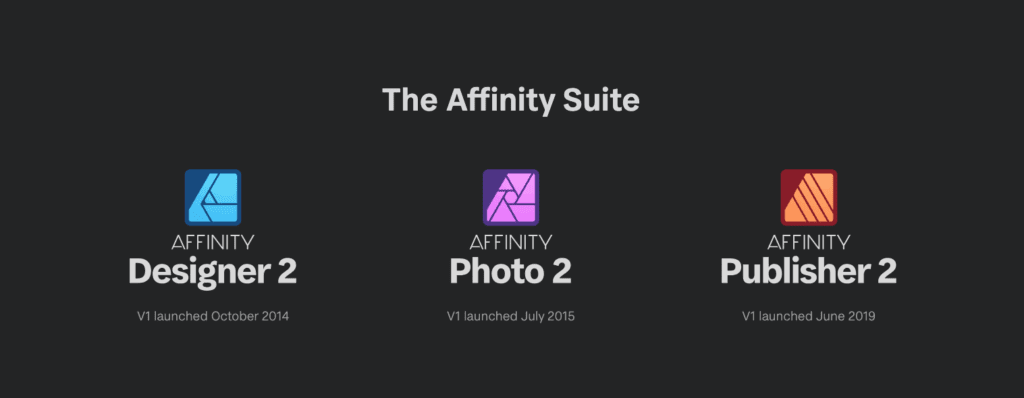
Affinity only offers these 3 programs, which are similar to Adobe’s Photoshop, Illustrator and InDesign, respectively, but the Creative Cloud has a larger suite of programs for things like video editing and photo editing that you might take advantage of if you have them!
Overall, I still default to Adobe because it’s what I’m used to and there are a lot more features. However, if you were learning for the first time and on a budget, Affinity programs are a really good alternative! If more people used Affinity, I think I’d recommend it more, but for new designers I think it’s immeasurably valuable to be on the same program that your teachers, printers, and peers will be using. It’s like if all your friends are on Facebook, but you’re still over on MySpace (is this reference too old???).
Figma
Figma is a fun program that I recently explored for the first time. Its capabilities are really for UI/UX design. It’s great for collaborating on design, and since it’s web-based it’s quick to use and generally easy to learn. However, you’re missing a lot of features that you need for wedding invitations, especially download options for printing.

While it’s a cool platform, I don’t recommend it for invitation design.
Canva for Wedding Invitations
I love Canva! I use Canva almost every day in my business – just not actually for designing wedding invitations. Canva is designed to be user-friendly and perfect for online or on-screen graphics. It’s great at that. I use it for social media graphics, presentations, and more!
On the other hand, Canva is not the best program for print design. If you print via Canva, they do some migration on the back end. But if you try to print elsewhere, you just don’t have as many print options. Most stationery printers I work with either don’t accept Canva files or charge a fee to convert them to a printable file.
Why is Canva not ideal for print design? Two main reasons. First, all Canva files are in RGB. This is a color space used for on-screen graphics. For print graphics, we need CMYK. More about CMYK vs. RGB here. Secondly, all Canva files are using raster graphics. For many invitation print methods, you need vector files instead.

If you are considering becoming a professional designer, I would highly (highly!) recommend that you invest some time into learning professional design software. Literally no shade to Canva – you’re just trying to make fresh-brewed coffee in a Keurig. You’ll eventually run into some roadblocks and wish you’d started in Adobe or Affinity!
iPad Apps for Designing Wedding Invitations
With the rise of iPad drawing apps, I often see beginning designers who are designing wedding invitations on iPads. While you absolutely can do this – I would recommend investing time into a more robust professional design software (again, I am teaching as a professional designer, not talking to DIY couples in this article). iPad programs are simply not as capable or feature-rich. Generally, they also work in RGB (you need CMYK color space for printed invitations) and work mainly in raster, whereas you need vector elements for a lot of invitation print methods. I also just find designing on the iPad a lot slower.
Personally, I like to create art on the iPad, and then bring it onto my desktop to finish up the design! I use the iPad for venue sketches, pet portraits, calligraphy, and more!
Adobe on iPad for Invitations
Personally, I don’t think most of the Adobe apps for iPad are up to par for invitation design! I do enjoy drawing in Adobe Fresco, and I like sketching anything that needs to be vectorized in Adobe Illustrator for iPad using their vector brushes. That way, I don’t have to vectorize them afterward; they are already in vector format. I also love the functionality of sharing files across iPad and computer with Adobe.
Overall, I’d say the Adobe iPad apps are good for drawing your graphics for invitations. I still am more used to Procreate, but I’m learning the Adobe programs mostly due to the file sharing options with my existing Adobe desktop programs.
Designing Invitations in Procreate
Using Procreate for wedding invitations is a lot like using Photoshop for wedding invitations. It’s not that you can’t do it, but it’s just not designed for that. First of all, Procreate is only available on the iPad, so you cannot bring those files onto your desktop without converting them. It’s also a raster-only program and all graphics are in RGB, not CMYK (like Canva!). Editing text is possible, but not ideal on Procreate.
For wedding invitations, I love to use Procreate to draw graphics, sketch venues, or edit existing artwork – but I always recommend bringing it into Adobe or Affinity to add text and finalize your files for printing!

I also loooooove using Procreate to quickly sketch out my initial design thoughts so I can send to clients to make sure we are on the same page before I dive into any real artwork and design time. I even made these Sketch Templates that include common paper shapes, die-cuts, embellishments and color palettes!
The Best Invitation Design Programs
As you can probably tell, Adobe Creative Cloud (specifically Illustrator, InDesign, and Photoshop) is my favorite software for invitation design. Affinity is a close second! As I mentioned, most tutorials and stationery design courses will be taught in Adobe, so it’s a good idea to learn it from the start. I know, it might seem challenging at first (I’m a self-taught designer, so I know!). But I’ve got a free Adobe Illustrator class that will get you up and running – and you can upgrade to the full CC Bundle for InDesign + Photoshop too. The best thing about these classes is that they are taught from an invitation designer – all of the examples and tools shown are shown in the context of invitation design, just like you’ll be using them!


Behind the scenes with your favorite Stationery Auntie Laney (and all the inside scoops!)


